Transfer automation ownership
Transferring ownership is useful when a user leaves the company or changes roles, so someone else can take over their automation.
If you just want someone to be able to trigger your automation, without giving up ownership, see manage who can trigger automations.
What happens when you transfer automations
The automation is deactivated for everyone as part of the transfer. The list of users who can trigger it stays intact, but the automation won’t trigger for anyone until reactivated.
A deactivated status prevents it from failing partway through the transfer, in case a required connection, like an email sender or an app the automation uses, isn’t set up.
The new owner gets a notification both in Pipedrive and via email with a direct link to review and activate the automation. Once they’ve confirmed everything is set up correctly, it can be reactivated.
Losing ownership means losing access to the automation entirely, unless you’re a global admin. See who can create and manage automations for the full overview.
Start a transfer
Open the account menu and go to Tools and apps > Automations, then open the automations tab.
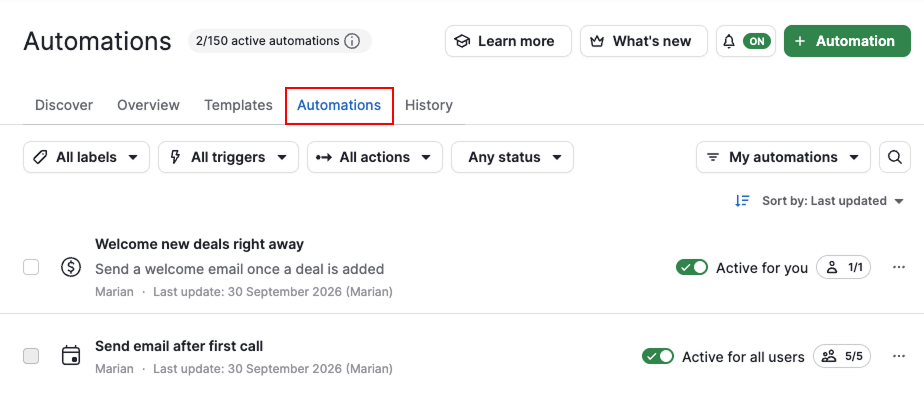
There are three ways to start a transfer:
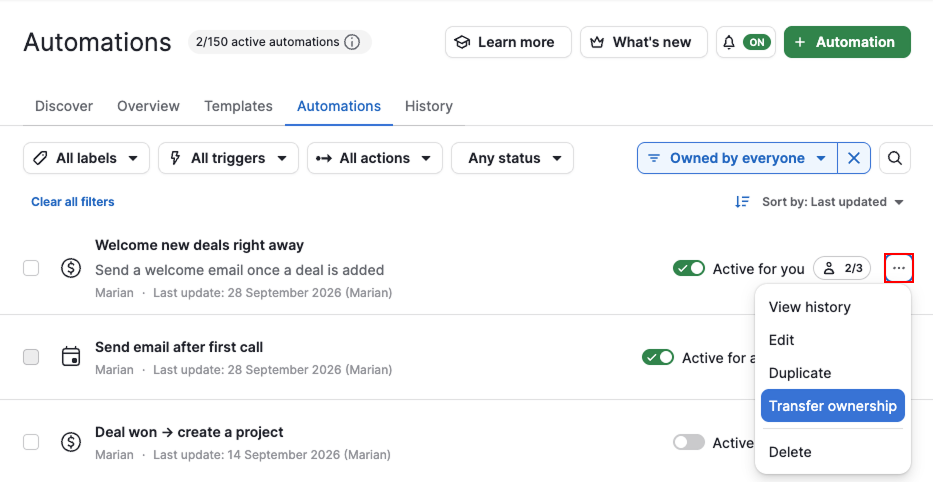
From the automations list view
To transfer a single automation, click “...“ next to it and select “Transfer ownership“.
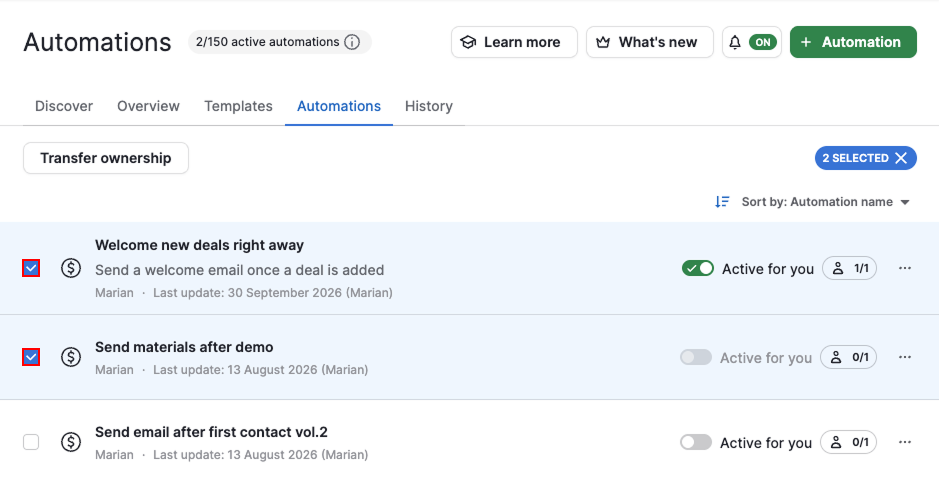
To transfer several at once, select one or more automations, then click “Transfer ownership“.
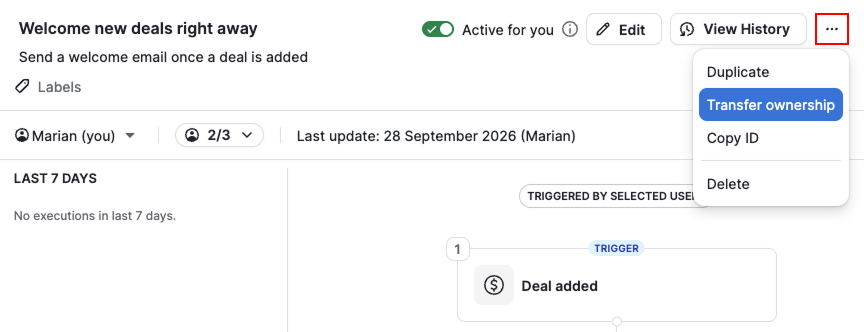
From the automation’s contextual view
From the same list, select an automation to open its contextual view. Click “...“ and select “Transfer ownership“.
Choose the new owner
Select the user you want to transfer the automation to, then click “Next“.
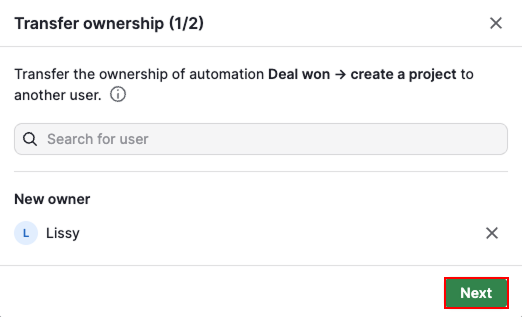
Before you confirm, know what you’ll lose access to:
| Your role | After transferring |
| Regular user (automation owner) | You can no longer edit, duplicate, delete, transfer or manage selected users |
| Global admin | No change. Access to automations isn’t tied to ownership. |
Click “Transfer“.
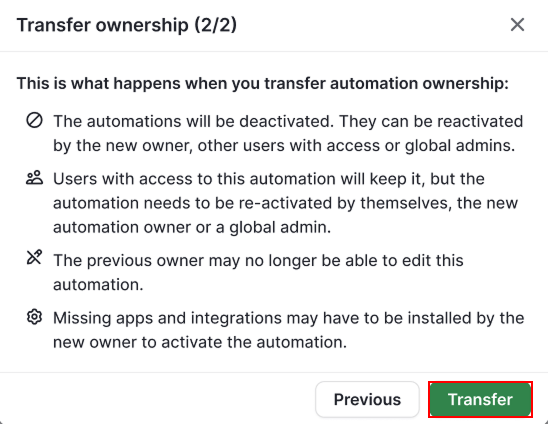
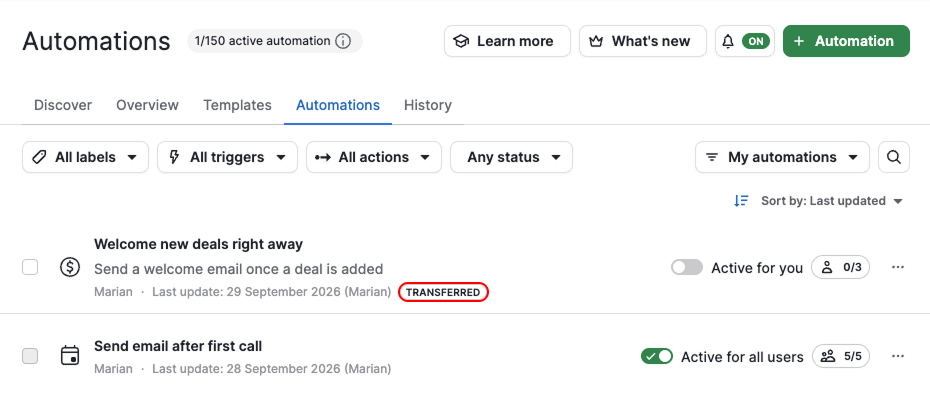
Once the transfer is complete, the automation appears in the new owner's automations list view with a “Transferred“ label. This label disappears automatically after three days.
What the new owner should do
The automation stays deactivated until you reactivate it, so before turning it back on, check that:
- The automation setup is aligned with your company’s processes
- That any Marketplace apps the automation uses, such as Asana, Microsoft Teams, Slack, Trello or WhatsApp, are connected and accessible to the new owner
- That the new owner also has access to any other features the automation uses, such as email sync, webhooks, Projects or Campaigns
- That any email steps in the automation still send from the right account. See email senders in automations for details.
Once everything checks out, activate the automation to start triggering it again.
Was this article helpful?
Yes
No