WhatsApp: manage templates
Starting a new conversation on WhatsApp always requires selecting an approved template first. WhatsApp only allows businesses to initiate conversations this way.
This article covers creating, editing and managing templates. For connecting WhatsApp or managing phone numbers, see the WhatsApp integration: how to set it up article.
For sending a template in an existing conversation, see the WhatsApp: send and manage messages article.
Messaging rates vary by market and category pair. You can estimate your charges by using Meta’s rate calculator.
Template requirements and limitations
Before creating templates, keep the following in mind:
Templates must be approved by Meta before they can be sent
Templates are required to start or continue conversations after 24 hours of the last customer message
Template structure and content must comply with WhatsApp business platform guidelines
Pipedrive only supports templates with a text body and an optional text header. Templates with image, video or document headers, footers or buttons can’t be sent from Pipedrive
Meta limits the total number of templates per account. Unverified businesses can create up to 250 templates, whereas verified businesses can create up to 6,000. To create more templates after hitting the limit, delete any you no longer need, or, for the lower limit, verify your business with Meta to increase it.
Create templates
To create a template, go to Tools and apps > WhatsApp > Templates and click “+ Template”.
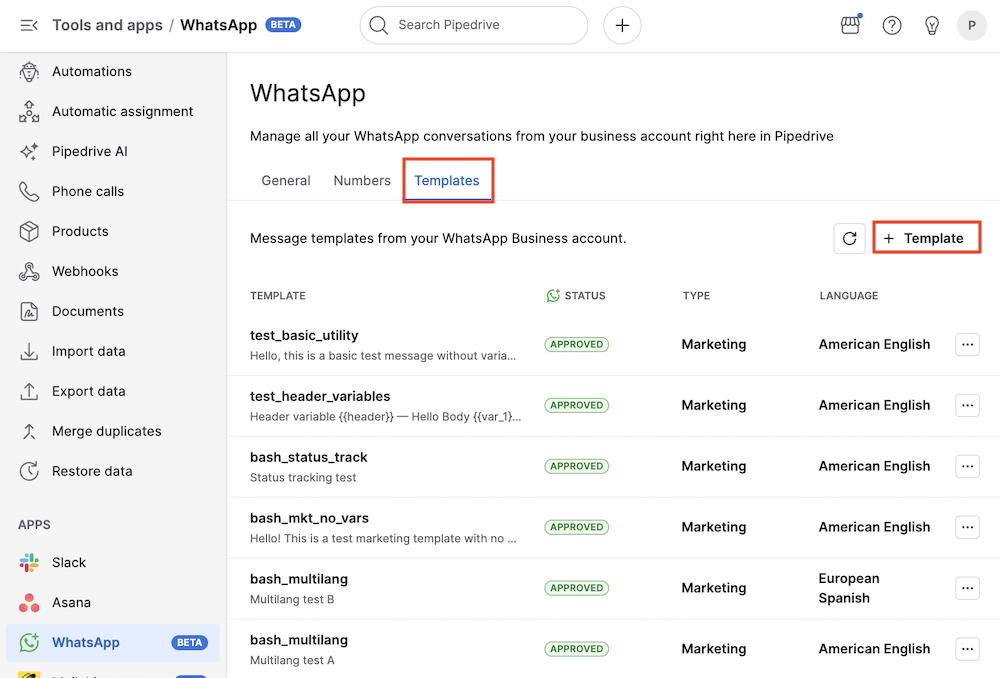
In the Add template modal, you can define the template’s category (marketing or utility), name, language, an optional text header and the message content.
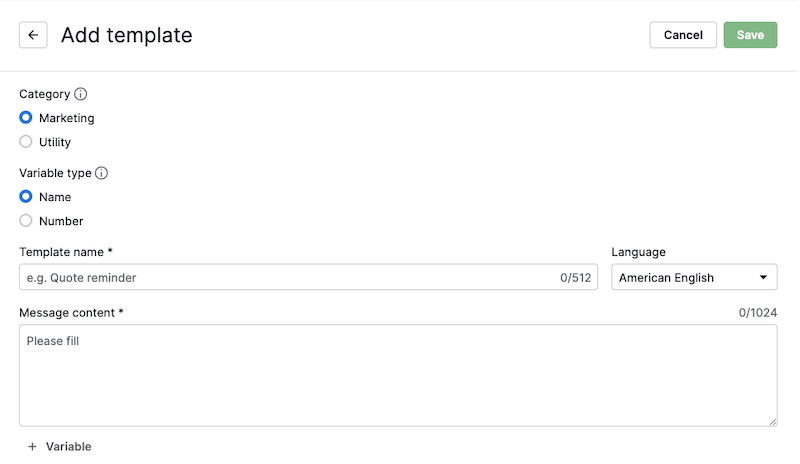
You can also include name (e.g., {{name}}) or positional (e.g., {{1}}) variables in both the header and body by clicking their respective “+ Add variable” button.
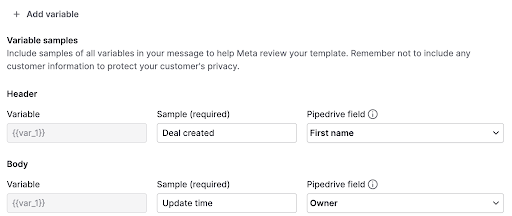
You’ll need to provide a sample value for each variable. This drives the preview and is required before you can save the template.
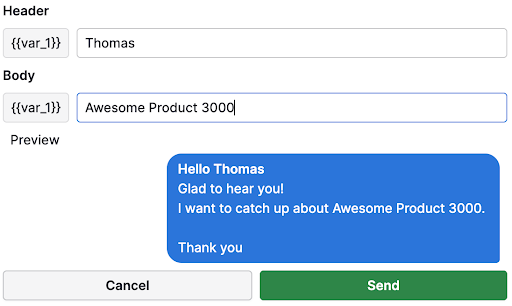
Variable values must be entered manually each time you send a template.
You can see how your message will appear in the preview pane.
Once the template is created, it must be approved by Meta before it becomes available to send, a process that can take up to 48 hours.
You can see the current status of your newly created template on the template page.
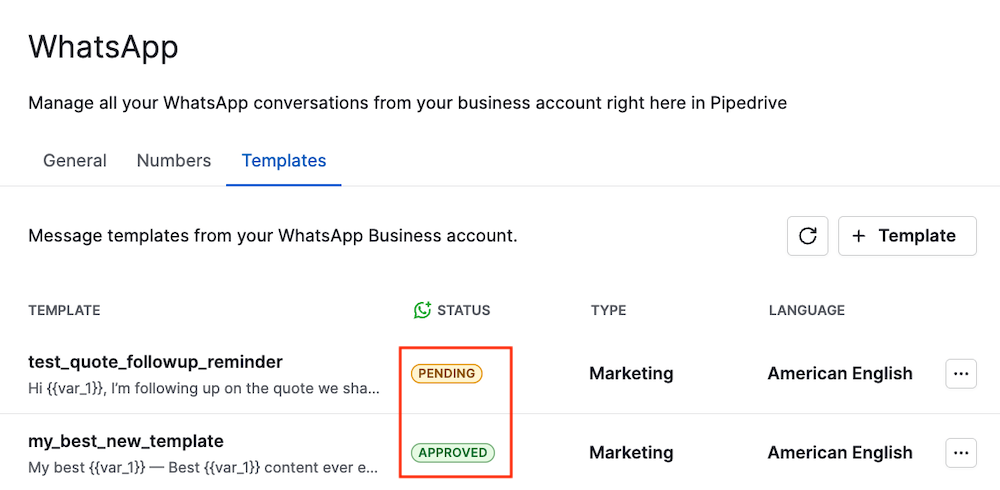
If a template is rejected, its status changes to rejected and Meta provides a reason. Edit the template to address the issue and resubmit it for approval.
You can also create templates using WhatsApp Manager.
Edit or delete a template
If you’re an admin user, you can view and manage templates in Tools and apps > WhatsApp > Templates.
To edit a template, click the “...” button at the right and select “Edit”.
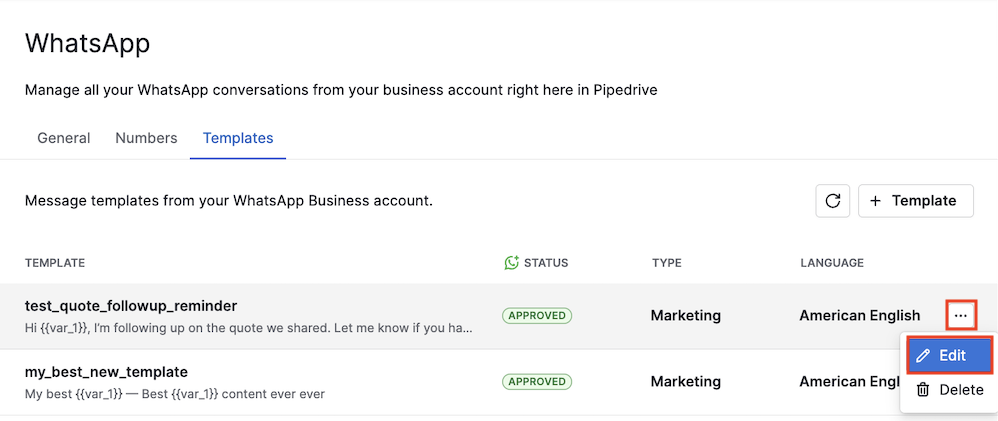
The template form opens with the current content pre-filled. After saving, the updated template is submitted to Meta for review and its status returns to pending until approved again.
You can also delete a template by selecting the “Delete” option in the same menu.
Was this article helpful?
Yes
No