Ez a cikk gépi fordítás segítségével készült el.
Okos dokumentumok: eAláírások
A Smart Docs funkció tartalmazza az eSignatures-t, így további eszközök nélkül kérhet aláírásokat az ügyfelektől.
A Pipedrive eSignatures funkciója Basic Digital Signing-et kínál. Tudjon meg többet erről a típusú aláírásról ebben a cikkben.
Aláírás kérése
Kérelem küldése
Aláírás kéréséhez létre kell hoznod vagy feltöltened egy dokumentumot a Smart Docs funkcióval az ügylet vagy a kapcsolati adatlap oldalán. A dokumentum létrehozásának módját megismerheted ebben a cikkben.
Két helyen kérhetsz aláírást:
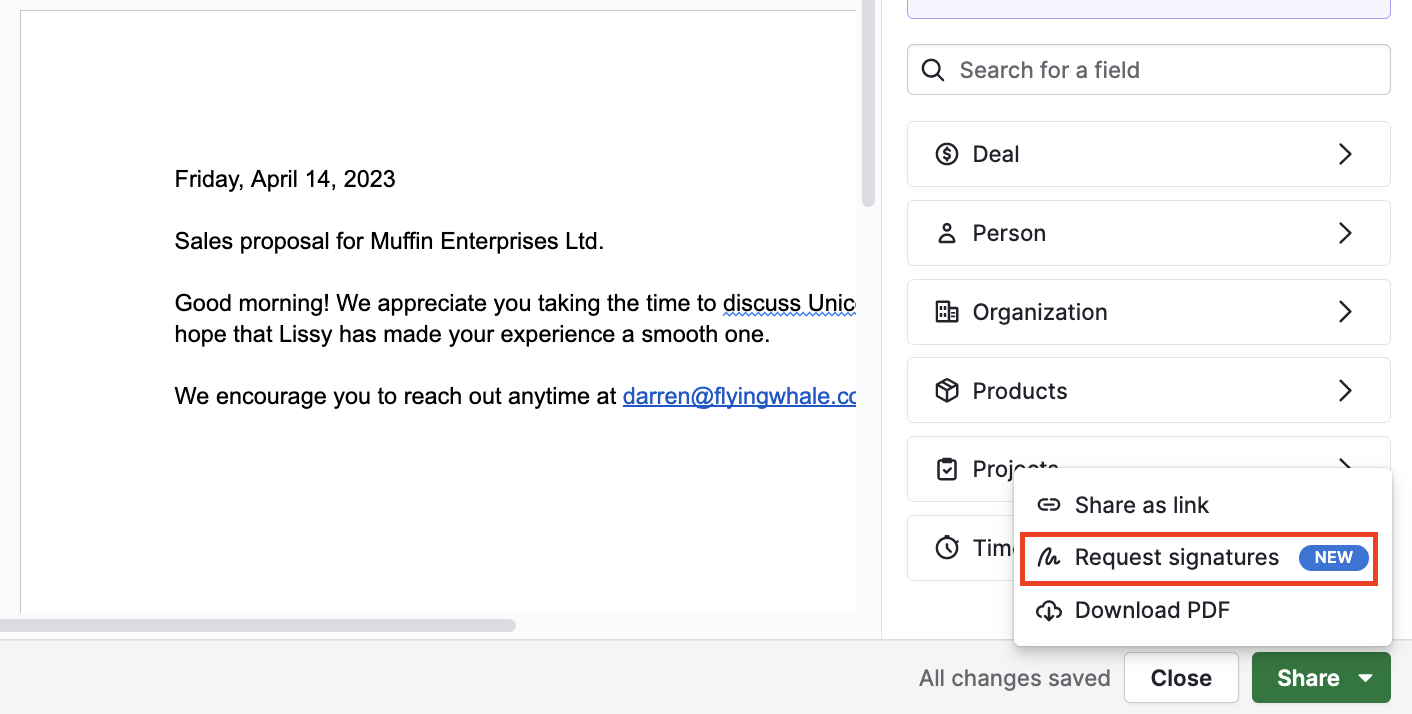
A dokumentumszerkesztőben
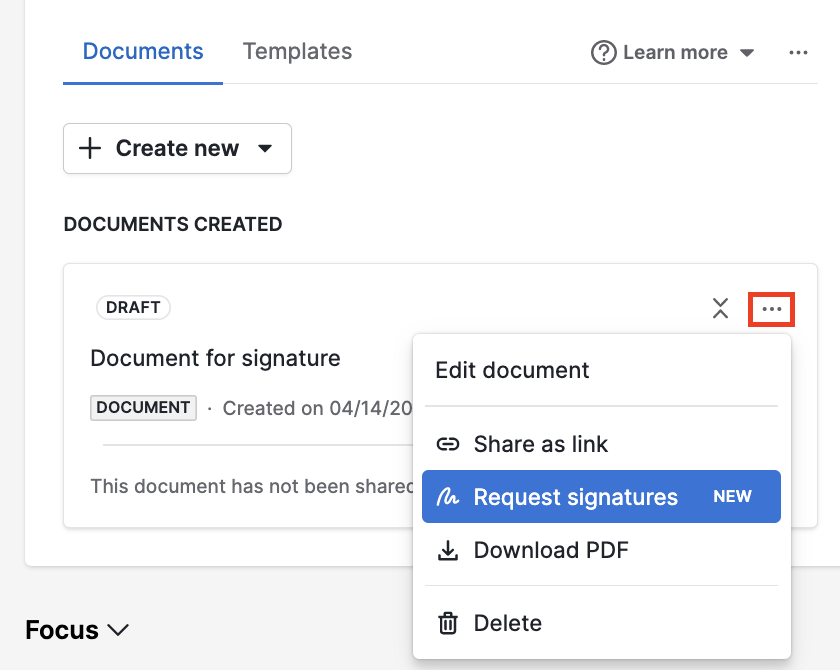
A részletes nézetben
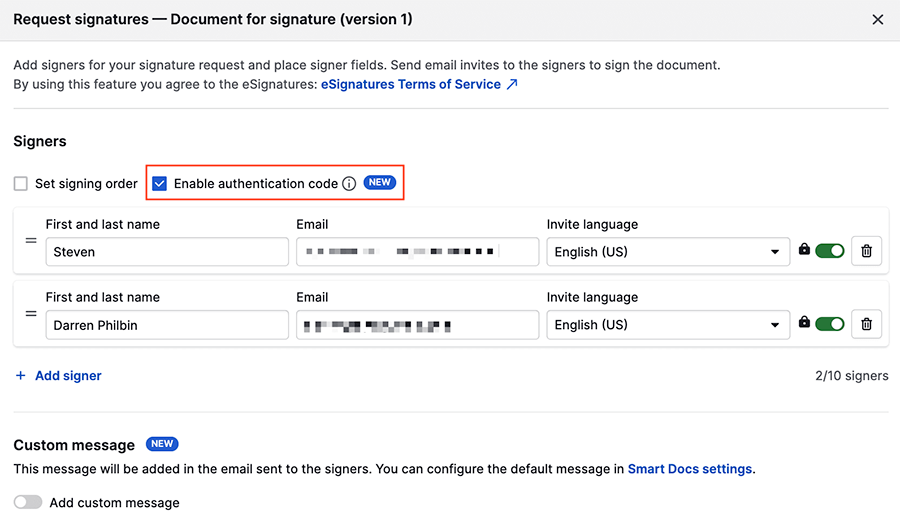
A „Aláírások kérése” gombra kattintás után áttekintheted a dokumentumot és kezelheted az aláírókat. Az aláírást kérő felhasználó (te) és a kapcsolódó kapcsolattartó automatikusan hozzáadódik aláírónak, de törölheted vagy bővítheted a listát. Dokumentumonként legfeljebb 10 aláírót adhatsz hozzá.
A meghívó nyelvét a „Meghívó nyelve” alatt módosíthatod.
A kérés hitelesítése
Az aláírás-kérések hitelesítő kódot igényelnek.
Amikor ez a biztonsági funkció aktív, az aláírók egy egyszer használatos hitelesítő kódot kapnak e-mailben az e-mail címük érvényességének ellenőrzéséhez (bár ez nem garantálja azt). Az aláírónak ezt a kódot kell használnia a dokumentum aláírásához.
A kérés testreszabása
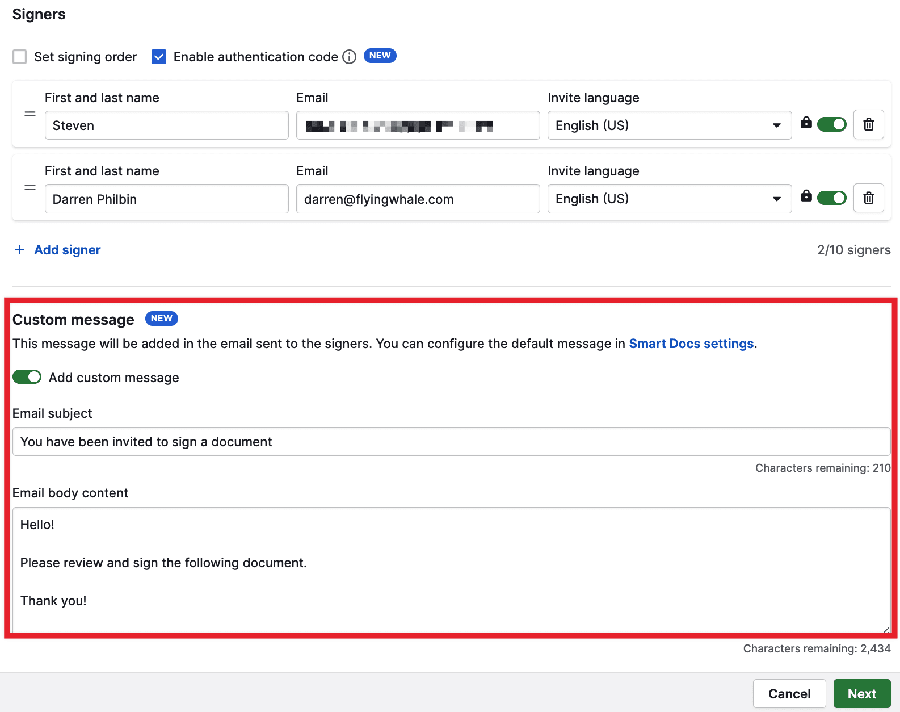
Személyre szabhatod az ügyfeleknek küldött e-aláírás kéréseket tartalmazó e-maileket egyedi tárggyal és üzenettel.
Ha rákattintasz a „Tovább” gombra, hozzáadhatsz aláírói mezőket a dokumentumhoz, és drag-and-drop módszerrel elhelyezheted őket a kívánt helyen.
Miután elhelyeztél egy mezőt a dokumentumban, az egérrel fölé húzva szerkesztheted és konfigurálhatod az egyes mezőket.
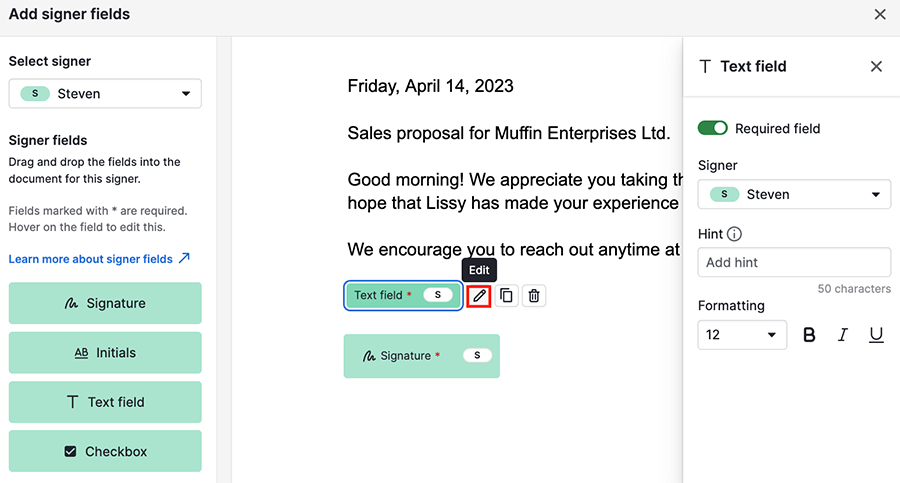
Jelenleg négy típusú aláírói mező érhető el, különféle beállítási lehetőségekkel:
Aláírás | Ez kötelező mező, nincs konfigurálható beállása |
Kezdeti betűk | Kötelezővé/választhatóvá tehető mező |
Szöveges mező |
Megjegyzés: Az aláírói szöveges mezőkben csak a latin ábécé karakterei támogatottak. |
Jelölőnégyzet | Kötelezővé/választhatóvá tehető mező |
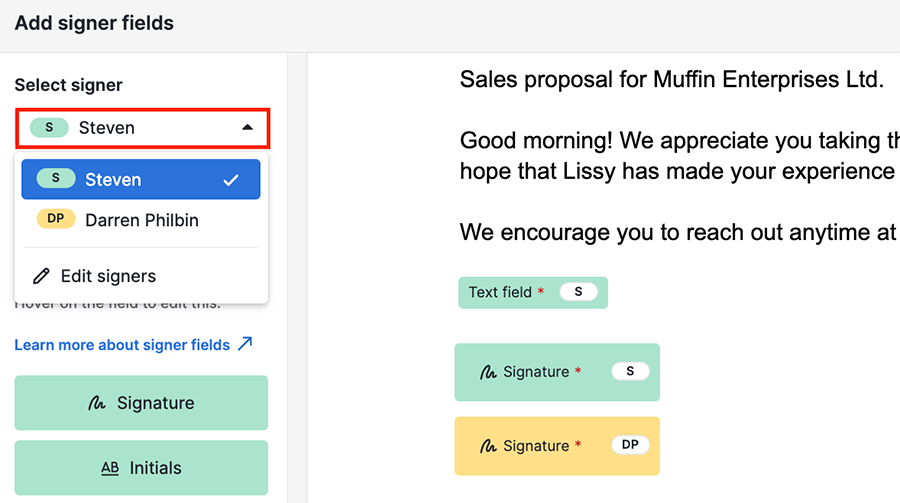
Ha aláírói mezőket adsz a dokumentumhoz, minden aláíróhoz tartoznia kell egy aláírásmezőnek. A bal oldali panel „Aláíró kiválasztása” legördülőjében válthatsz az aláírók között.
Mezőt más aláíróhoz is hozzárendelhetsz a mezők szerkesztésekor.
Ha befejezted a dokumentum beállítását, kattints a „Küldés” gombra; a dokumentum utasításokkal együtt elküldésre kerül minden aláírónak. E-mail értesítést kapsz, amikor valaki aláír vagy visszautasítja az aláírást.
Ha nem szeretnél aláírási mezőket hozzáadni a dokumentumhoz, kihagyhatod ezt a lépést a „Mégis küldés” gombra kattintva.
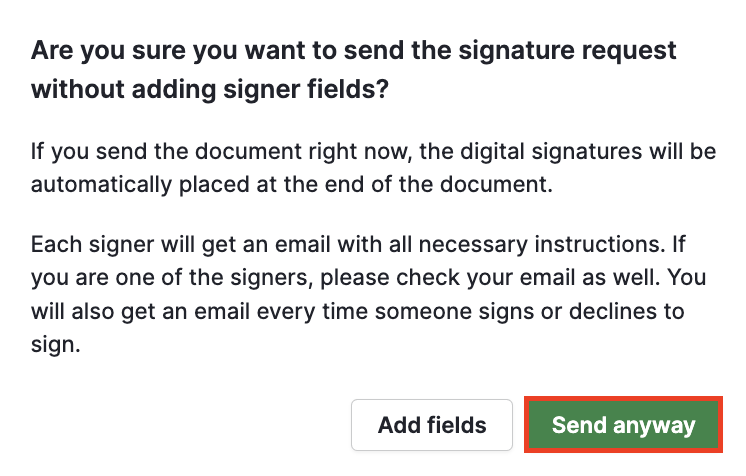
Ha a dokumentumot aláírói mezők nélkül küldöd el, az aláírások a dokumentum végére, egy külön oldalon kerülnek elhelyezve.
Nem támogatott dokumentumtípusok
A következő dokumentumtípusok nem támogatottak aláírásgyűjtéshez:
- Titkosított dokumentumok (jelszóval védett dokumentumok)
- Már digitálisan aláírt dokumentumok.
- Csak olvasási jogosultsággal rendelkező dokumentumok.
Ezeknek a dokumentumtípusoknak az esetén nem jelenik meg hiba, és az aláírás folyamata a szokásos módon zajlik le. Azonban a Pipedrive nem fogja megkapni azt, így a dokumentum soha nem fog „befejezettként” megjelenni.
A dokumentum aláírása
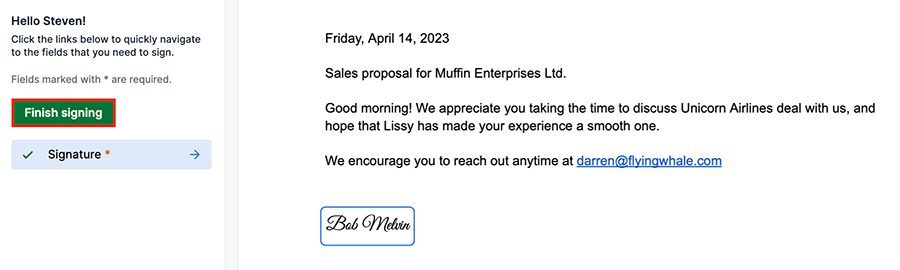
Amikor az aláíró megnyit egy aláíráskérést az e-mailjében, megtekintheti a dokumentumot. Kattinthat a “Aláírás” mezőre, hogy a dokumentumot begépeléssel vagy rajzolással aláírja, vagy használhatja a jobb felső sarokban található legördülő menüt, hogy “Aláírás megtagadása” vagy “Letöltés PDF-ként”.
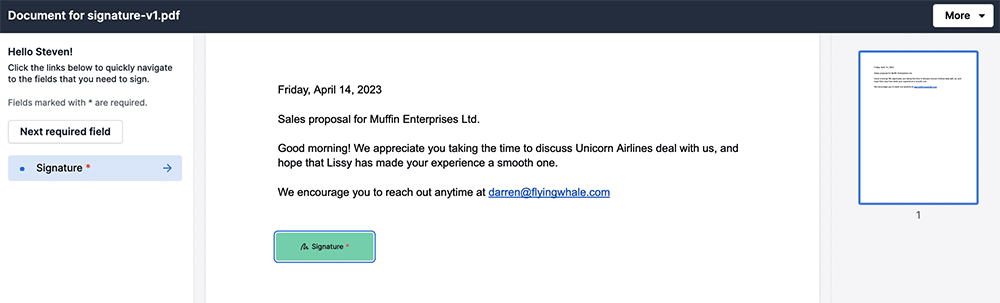
Miután az összes kötelező aláírómező kitöltésre került, az aláíró a folytatáshoz a “Aláírás befejezése” gombra kattinthat.
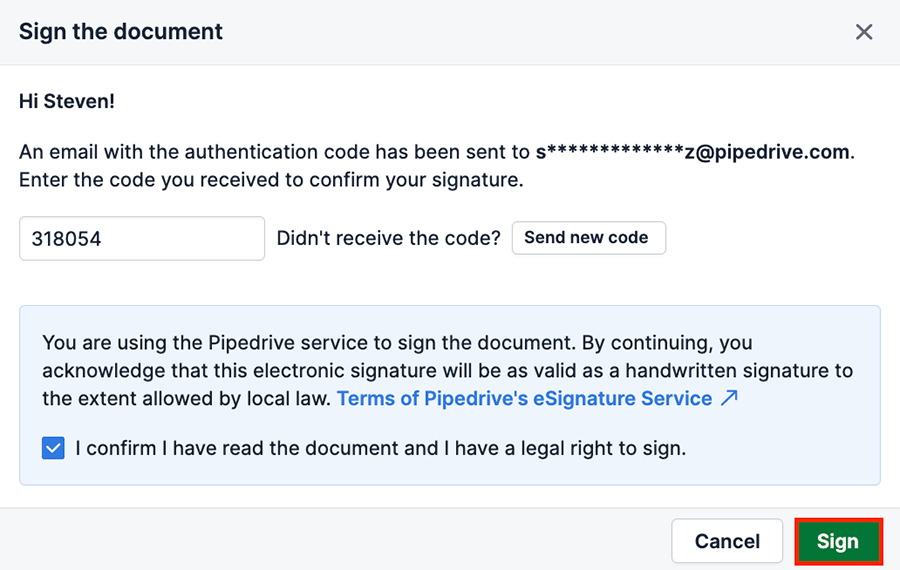
Az aláírótól megkérik, hogy adja meg az azonosító kódot, és jelölje be azt a négyzetet, amellyel megerősíti, hogy elolvasta a dokumentumot. Ezután a dokumentum benyújtásának befejezéséhez rákattinthat a “Aláírás” gombra.
Miután mindenki aláírta a dokumentumot, a kitöltött dokumentum PDF-je és az ellenőrzési napló automatikusan elküldésre kerül e-mailben az összes aláírónak és annak a felhasználónak, aki kérte az aláírásokat.
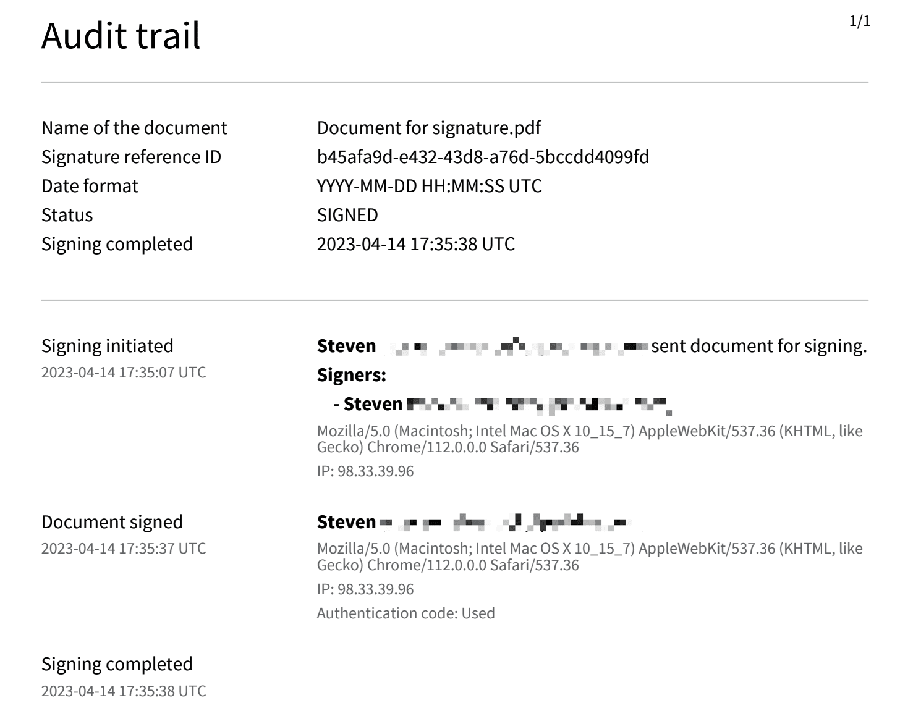
Ellenőrizze a dokumentum aláírási állapotát
A kapcsolattartó vagy az ügylet részletes oldalán látható a dokumentum aláírási állapota.
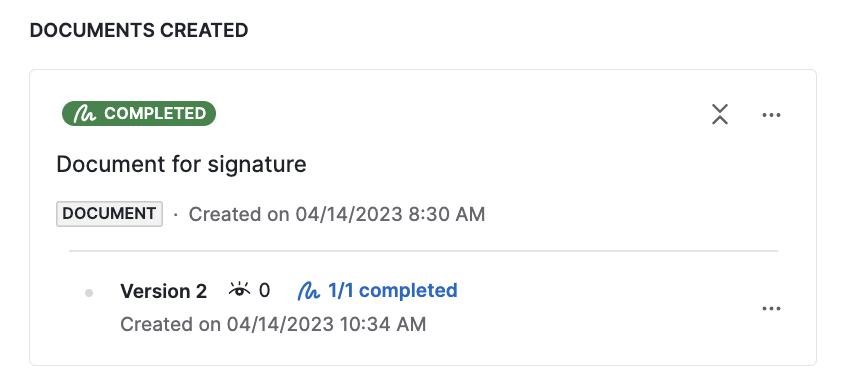
Kattintson az aláírási állapotra az egyes aláírókra vonatkozó információk, a dokumentum megtekintései és az aláírási állapot megtekintéséhez.
- Elutasítva – az aláíró elutasította a dokumentum aláírását. Újraküldheti az aláírási kérelmet a „Meghívó újraküldése” gombra kattintva.
- Elküldve – az aláírási kérelem még függőben van. Kattintson a „Emlékeztető küldése” gombra, hogy e-mailben értesítse a címzettet a kérelemről.
- Befejezve – az aláíró már aláírta.
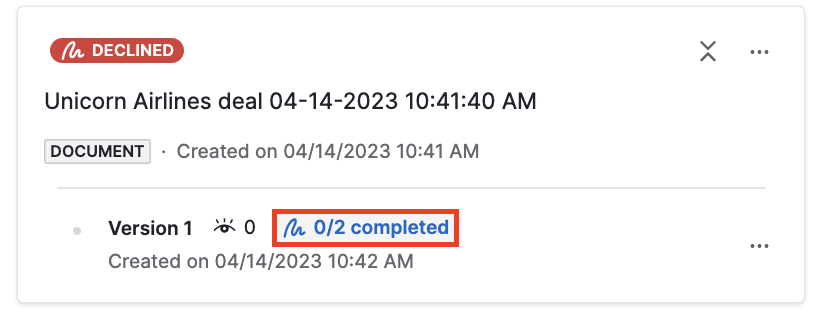
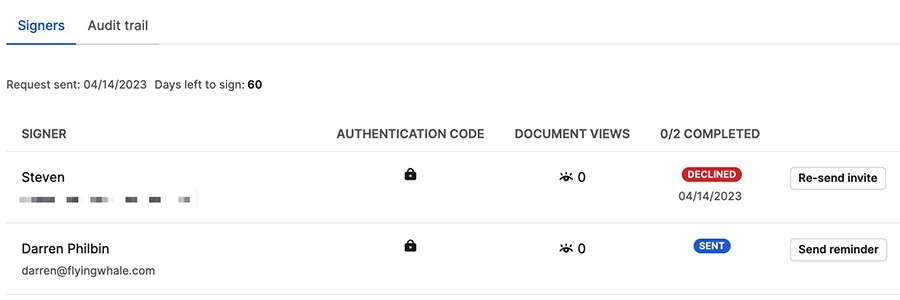
Ebben az ablakban a „Aláírás törlése” lehetőséget is használhatja, valamint a „Letöltés” opciót a dokumentum eredeti verziójának letöltéséhez. Ha mindenki aláírta a dokumentumot, letöltheti az aláírt verziót is az ellenőrzési naplóval együtt.
Hány aláírást kérhetek?
Előfizetésétől függően az aláírások száma változhat:
- Premium and Ultimate – Ezek a csomagok korlátlan aláírás-kérést tartalmaznak (az ésszerű használatra vonatkozó szabályzat hatálya alatt).
-
Lite and Growth (add-on) – Az add-on engedélyezett céges fiókjai kétféle aláírás-mennyiséget vásárolhatnak:
- havonta 30 aláírás-kérés
- havonta 100 aláírás-kérés
- Lite and Growth (add-on trial) – Az add-on próbaverzióját használó céges fiókok legfeljebb öt aláírást kérhetnek.
Mi az ésszerű használati szabályzat?
A Pipedrive szorosan figyeli az e-aláírás használatát. Ha észleljük, hogy a funkciót viszonteladásra használják, más módon visszaélnek vele, vagy aránytalan terhet jelent, fenntartjuk a jogot, saját belátásunk szerint megakadályozzuk vagy felfüggesszük egy felhasználó hozzáférését a funkcióhoz.
Hasznos volt ez a cikk?
Igen
Nem