Insights reports: WhatsApp performance
The WhatsApp performance report in Insights shows how many outgoing WhatsApp messages your company sent over a defined period. Use it to see message volume over time and to break it down by sender, phone number, linked deal and other WhatsApp fields. Incoming messages aren’t counted.
Before you start
To create a WhatsApp performance report, you need:
- An active WhatsApp integration with a connected WhatsApp Business account
- WhatsApp messages sent from that account
- Access to Insights
The data in your report doesn’t depend on your visibility settings or Insights permissions. Every user with access to Insights sees the numbers for all of your company’s WhatsApp messages. For other Insights reports, check Insights: visibility and permissions.
Create a WhatsApp performance report
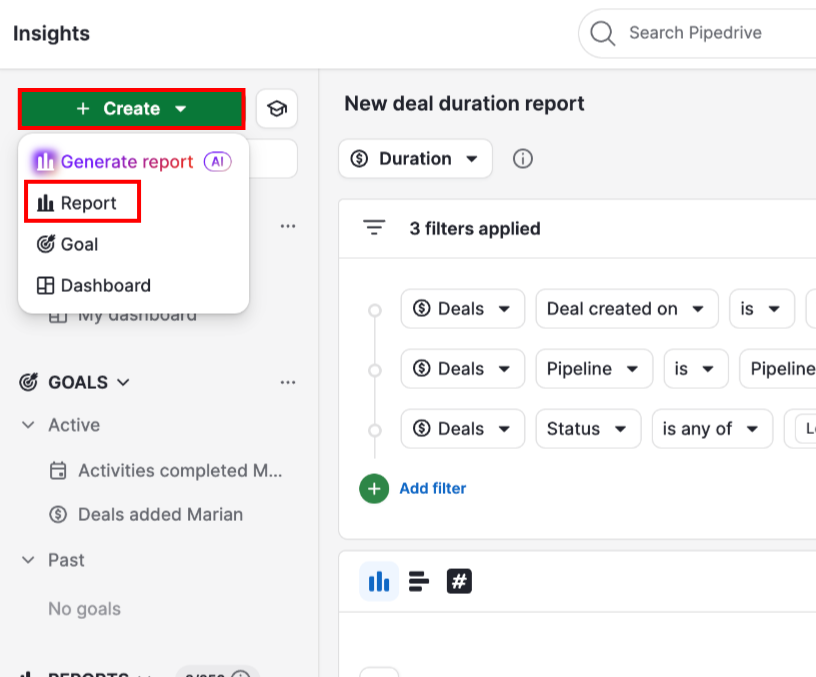
In the Insights view, click + Create > Report.
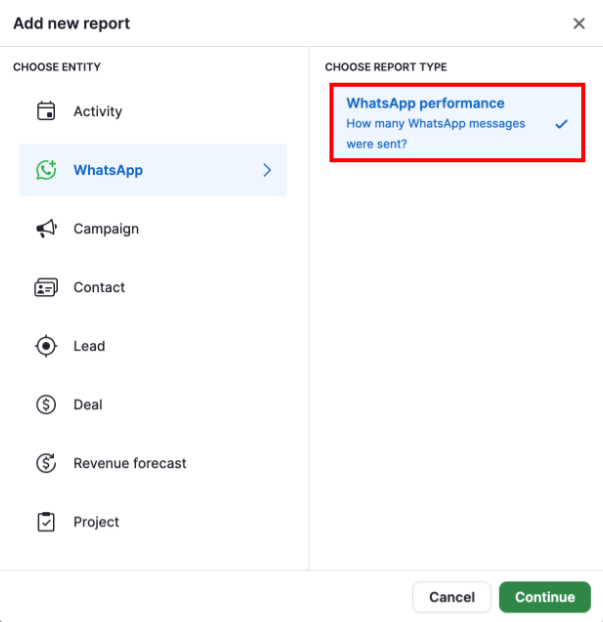
In the “Add new report” window, select WhatsApp > WhatsApp performance and click “Continue”.
The visual builder opens with a column chart. By default, the chart shows the number of messages by sent time, grouped by month and segmented by sender.
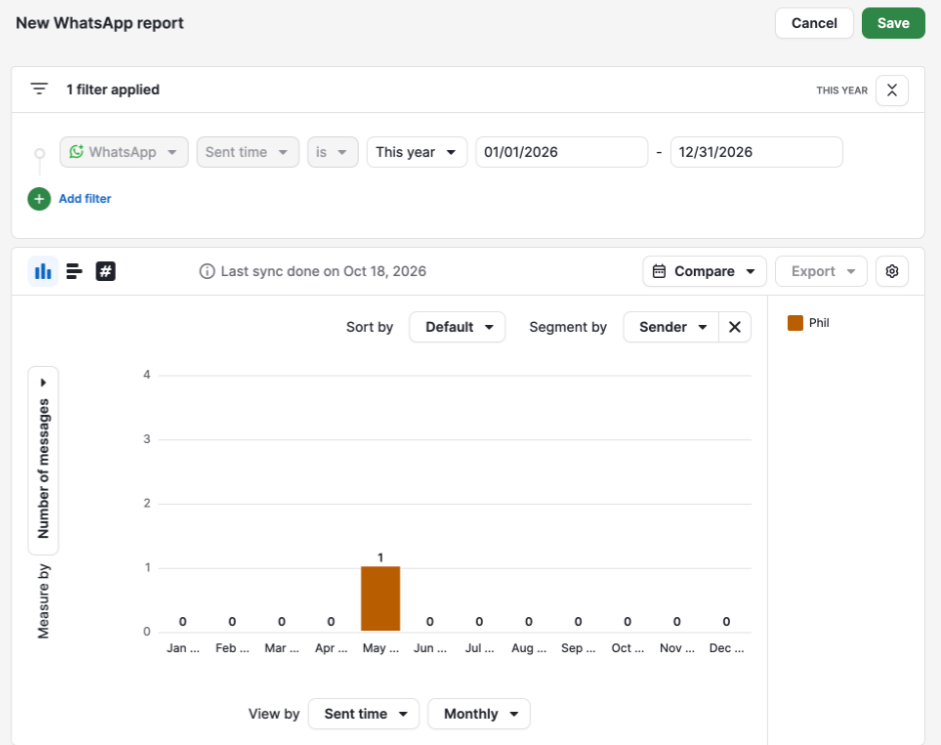
Click “Save” to save the report to “My reports” or to another folder, or continue customizing it to your preferences.
To track the report on a dashboard, open it and click “Add to dashboard”. For more information, check Insights: dashboards.
WhatsApp fields
The report uses these fields to describe each message. The table also shows which fields you can use to filter, group or segment your data.
| Field | What it shows | Filter | Group | Segment |
| Sent time | When the message was sent | Yes | Yes, by time period such as month | No |
| Sender | The Pipedrive user linked to the message. For messages sent through an automation or sequence, it’s the user who triggered it | Yes | Yes | Yes |
| Phone | The company’s WhatsApp phone number linked to the message, shown as the phone number’s display name followed by the number | Yes | Yes | Yes |
| Deal | The deal linked to the conversation | Yes | Yes | Yes |
| Contact person | The contact person linked to the conversation | Yes | Yes | Yes |
| Lead | The lead linked to the conversation | No | Yes | Yes |
| Project | The project linked to the conversation | Yes | Yes | Yes |
| Organization | The organization linked to the conversation | Yes | Yes | Yes |
| Origin | Where the message was sent from: WhatsApp (WhatsApp Business mobile app, outside Pipedrive), Pipedrive (the Sales Inbox or a detail page), Pipedrive automation or Pipedrive sequence | Yes | Yes | Yes |
| Template | The WhatsApp template used for the message. If the template was deleted, the report shows (deleted) | Yes | Yes | Yes |
Customize your WhatsApp performance report
Use filters, groups, segments and chart types to change what the report shows.
Filter your WhatsApp report data
Filters define which WhatsApp messages are included in your report. Click “+ Add filter” to narrow your results.
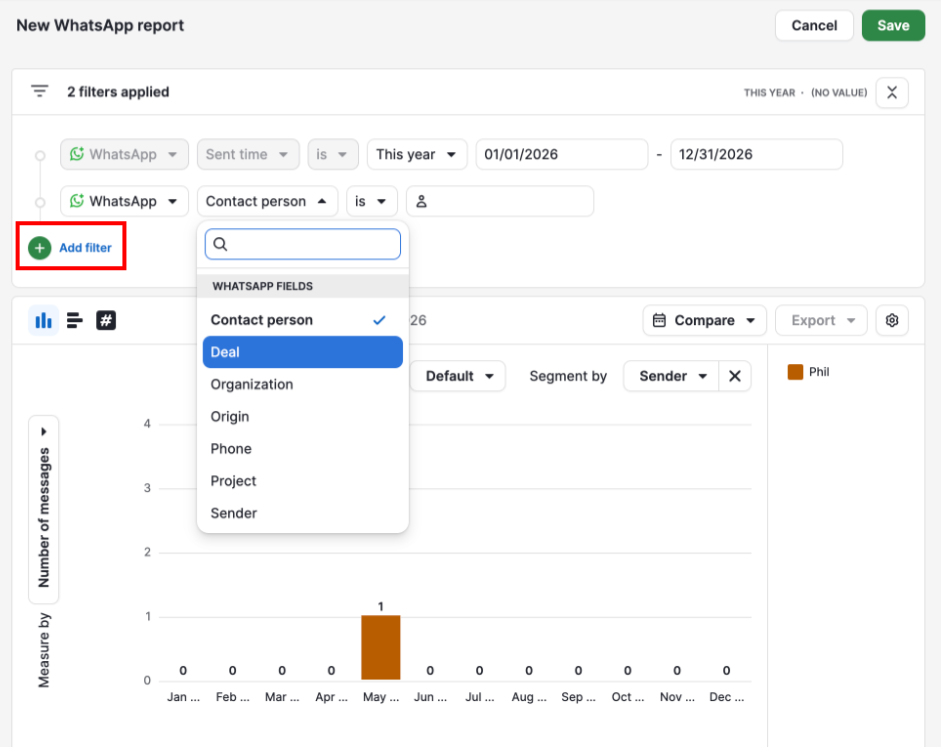
Every report has a Sent time filter, which is set to this year by default. Change the date range to choose the period you want the report to cover.
You can filter by any field marked Yes in the Filter column of the WhatsApp fields table.
You can also filter by fields of the linked deal, lead, contact person, organization or project. For example, you can show only messages linked to deals in a certain pipeline.
For more information, check Insights: combine linked item data in reports.
The lead field isn’t available as a filter. To filter by lead, use the fields of the linked lead.
Group your WhatsApp report data
Use the “View by” menu to choose how the report groups messages.
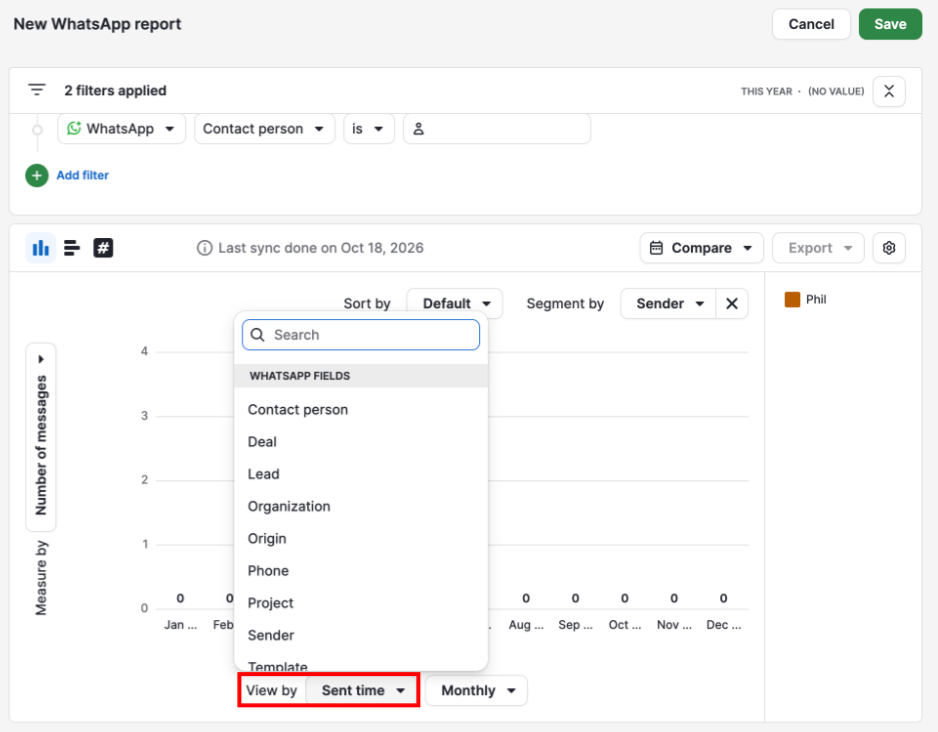
You can group by any field in the WhatsApp fields table, including Sent time with a time period such as monthly.
Segment your WhatsApp report data
Use the “Segment by” menu to split each group into smaller parts.
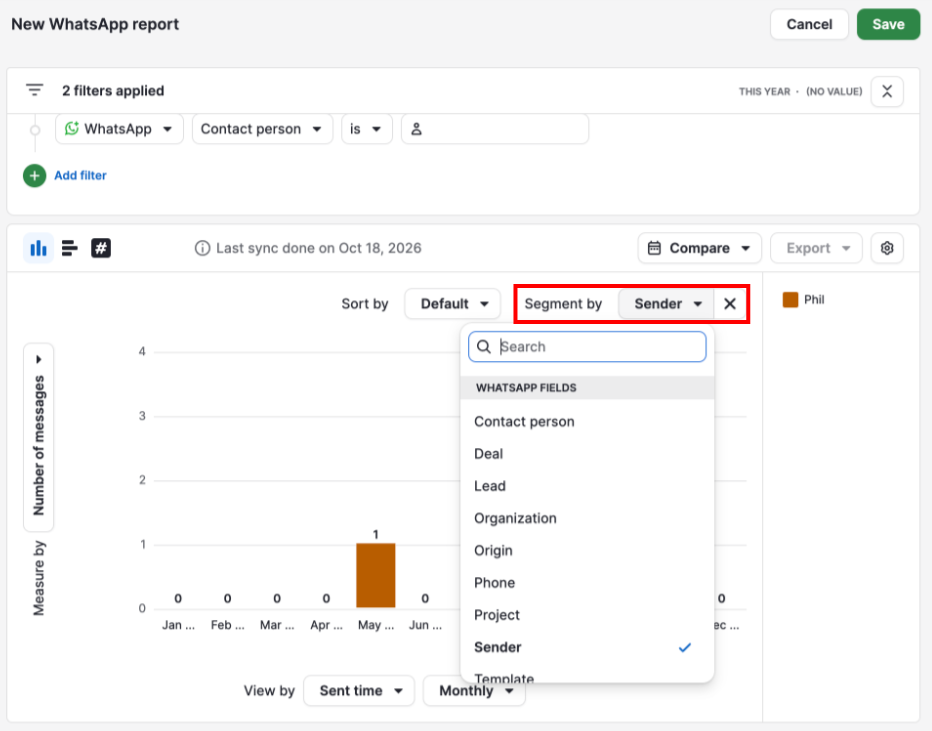
You can segment by any field in the WhatsApp fields table except Sent time.
To remove the segment, select “None”. Clicking the X next to the “Segment by” menu has the same effect.
Choose a chart type
You can show the report as one of these chart types:
Column: vertical bars
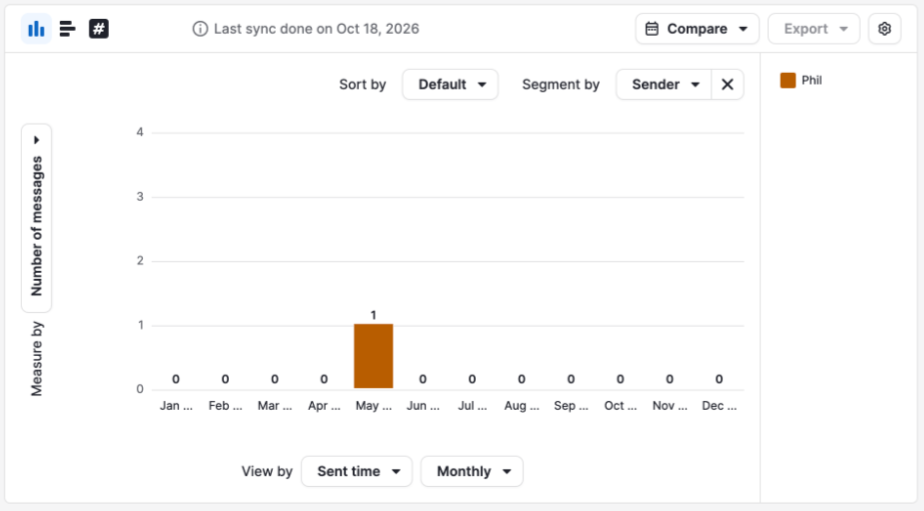
Bar: horizontal bars
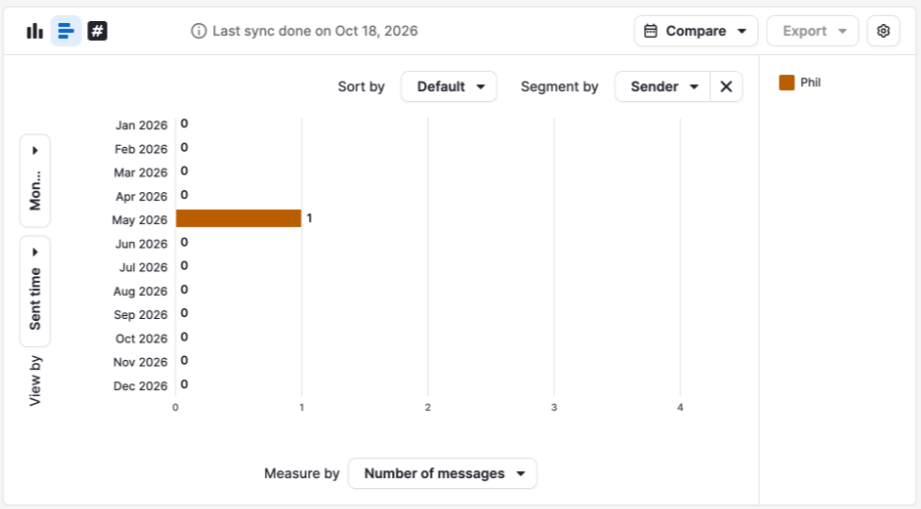
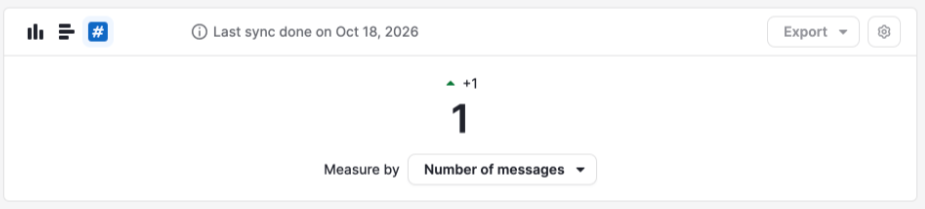
Scorecard
The total number of messages for the period in your Sent time filter, shown as a single number together with how it changed compared with the previous period. The previous period changes with the date range you select. It’s the period of the same length directly before the one you selected.
For example, if you select the last 30 days, the scorecard compares them with the 30 days before that.
Measure messages in your WhatsApp report
The “Measure by” menu has only Number of messages as a measure. It represents the outgoing WhatsApp messages in your report.
Filter other Insights reports by WhatsApp data
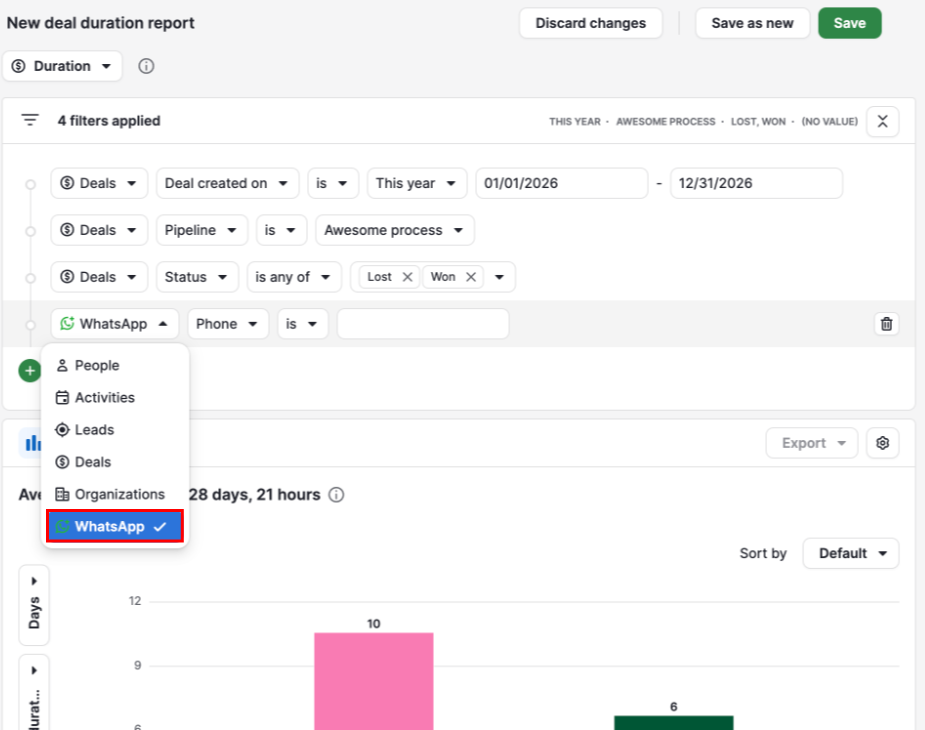
WhatsApp fields are also available as filters in deal, lead, people, organization, project and revenue forecast reports. For example, you can filter a deals report to show only deals that have messages sent by a specific user. Activity reports don’t support WhatsApp filters.
WhatsApp fields are available in filters only. You can’t use them to group, segment or add columns in these reports.
To add a WhatsApp filter, open the report and click “+ Add filter”.
Select “WhatsApp” as the item, then choose a field in the next dropdown under WhatsApp fields.
For more information on filtering reports with linked item data, check Insights: combine linked item data in reports.
Troubleshoot your WhatsApp performance report
The WhatsApp option is missing in the “Add new report” window:
Check that your company has an active WhatsApp integration with a connected WhatsApp Business account. For setup steps, check WhatsApp integration: how to set it up.
The report shows no data
Check that messages were sent from the connected account and that the Sent time filter covers the period you want. Messages sent today don’t appear until tomorrow. The report counts days in relation to UTC, not in your time zone.
The report shows fewer messages than you expected
Remove any filters you don’t need. The report counts only outgoing messages, and messages sent today don’t appear until tomorrow. Visibility settings and Insights permissions don’t affect it.
If the report still doesn’t show the data you expect, contact our support team.
Was this article helpful?
Yes
No