Insights: combine linked item data in reports
Combined data reporting lets you use data from linked items in a single report. This lets you analyze related information without manually exporting or merging data.
Combined data is available in report filters and table views. The visual builder measures the report’s primary item and can use linked items to organize report results.
Filters
Use fields from linked items to refine your report results. For example, you can filter a deals report using activity, lead, contact person, or organization fields.
Combined data is available in the report types listed below. The available linked items depend on the type of report you’re creating.
| Entity | Supported report types | Available linked items |
|---|---|---|
| Activity | Activities performance | People, organizations, leads, deals, projects |
| Contact | People, Organizations | People/organizations, leads, deals, activities, projects |
| Lead | Lead performance, Lead conversion | People, organizations, deals, activities |
| Deal | Deal performance, Deal conversion, Deal duration, Deal progress, Product report | People, organizations, leads, activities |
| Revenue forecast | Deal revenue forecast, Product revenue forecast | People, organizations, leads, deals, activities |
| Project | Project performance, Project duration | People, organizations, deals, activities |
Add a combined data filter
When creating or editing a filter, use the filter dropdown to select an item, then choose the field, condition, and value you want to use.
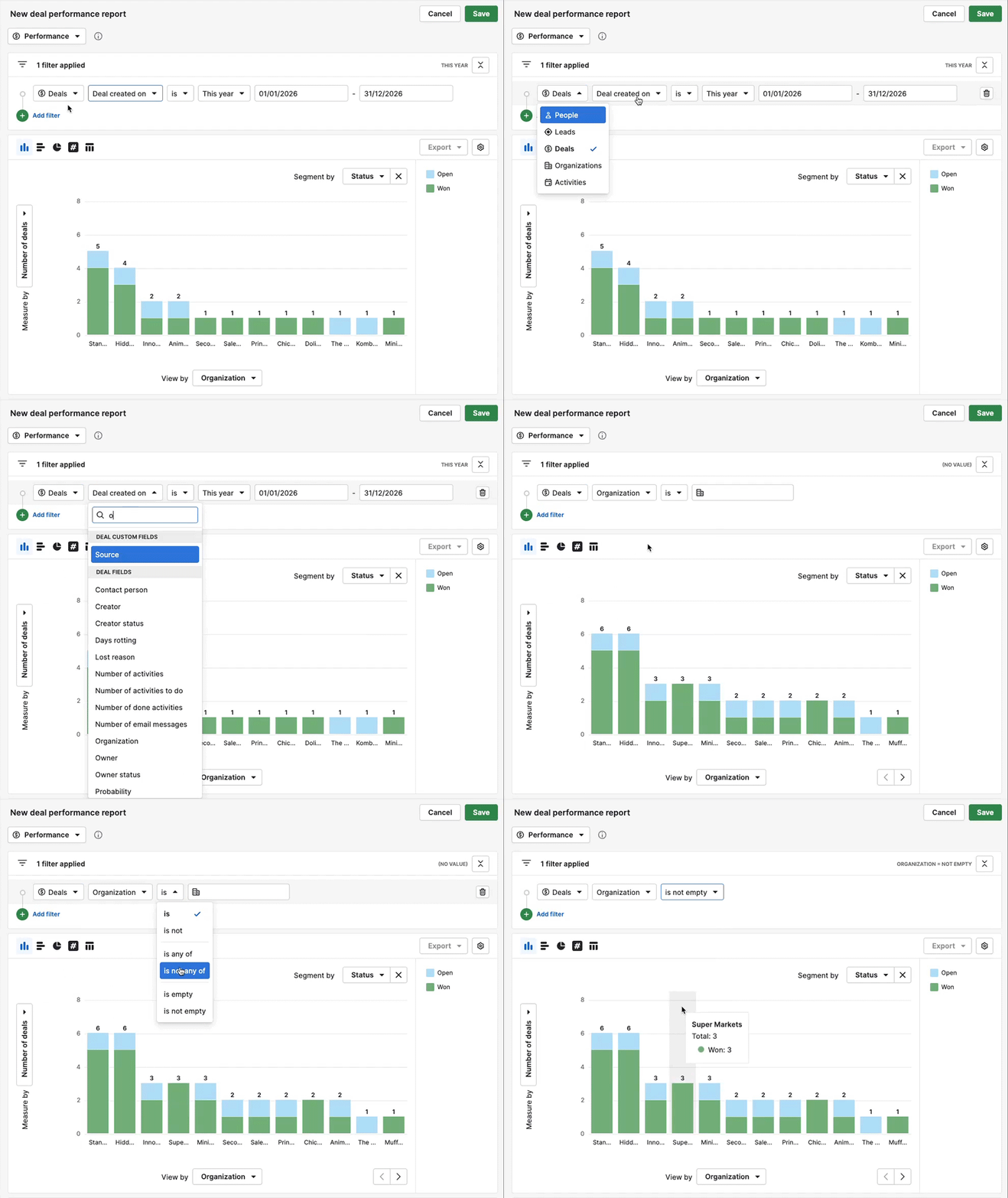
For example, in a deal performance report, the filter “Deals organization is not empty” shows all deals linked to an organization.
To narrow the results further, add an organization filter such as “Organizations industry is Financial services”.
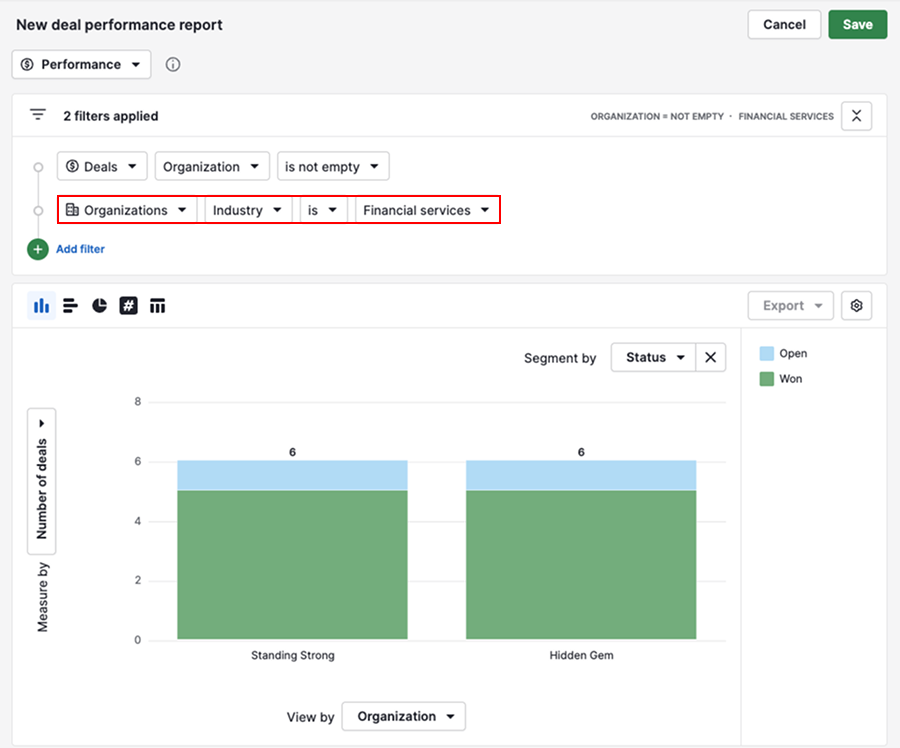
This allows you to analyze deals based on information stored in the linked organizations records.
Visual builder
The visual builder measures the report’s primary item, even when linked items are used to organize data.
For example, a deal performance report can show the number of deals grouped by organization. While organizations are used to organize the chart, the report is still measuring deals.
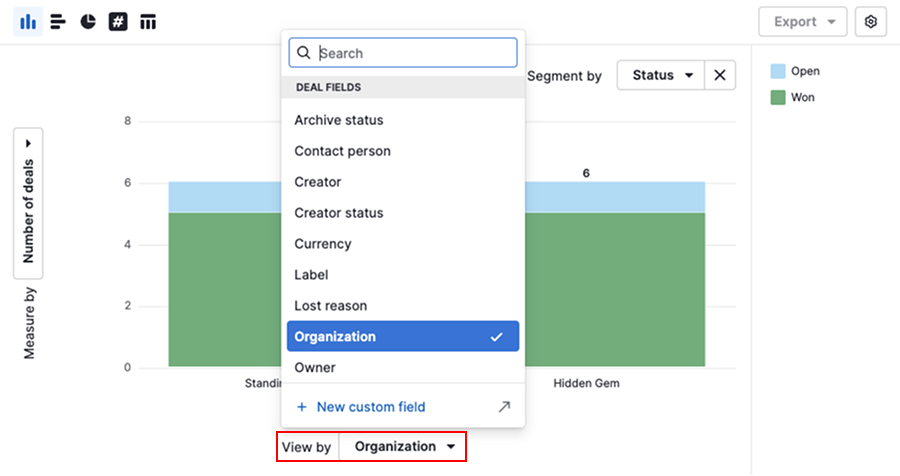
Table view
The table view supports fields from linked items in the same way as report filters, with a few limitations:
- Activity columns are only available in the activities performance report
- Organization report doesn’t support contact person fields as table columns
Add columns from linked items
Open the table settings using the gear icon, then select the columns you want to display.
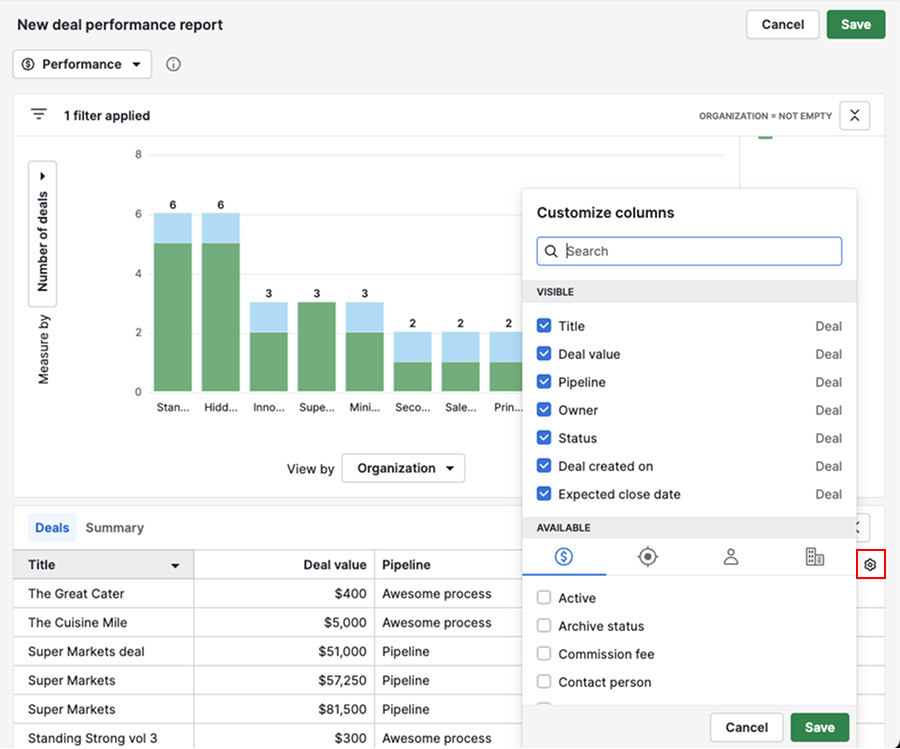
Columns from linked items are identified by an entity icon in the column header.

Was this article helpful?
Yes
No