Projects by Pipedrive FAQ
When should I use projects?
Use projects to manage the work that continues after a deal is won, such as onboarding, implementation, delivery or other post-sale processes.
While deals help sales teams track opportunities and revenue, projects help teams organize ongoing customer work in one place. This includes tracking tasks, activities and milestones connected to the customer relationship.
Deals and projects work best together. For example, a sales team can close a deal and link it to a project so delivery teams can continue working with the same customer information and history. Projects can also be used independently of deals for any other delivery work.
What’s the difference between a project seat and the projects app?
On Lite and Growth plans, Projects is available as a paid add-on per user.
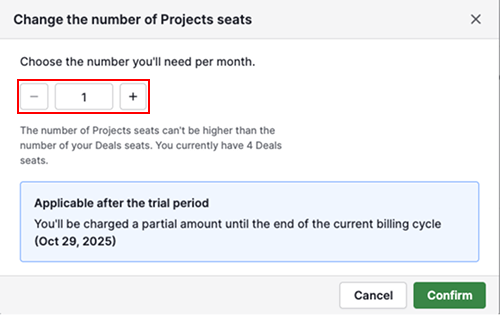
A project seat gives a user access to the Projects feature as part of the add-on subscription.
The projects app controls whether a user can access the feature in your company account.
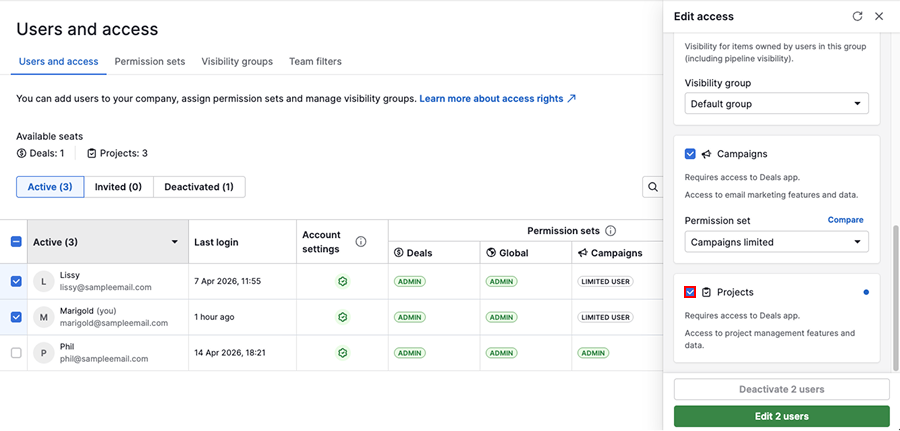
For example, your company may purchase several project seats, but users also need access to the projects app before they can use the feature.
What kind of project fields are available?
Projects include default fields that help teams organize customer work and track progress.
Some commonly used project fields include:
- Title
- Start date
- End date
- Description
- Board
- Phase
- Labels
- Health status
You can also create custom fields to store information specific to your business processes.
If your company manages multiple project processes, you can create board-specific custom fields so that relevant information only appears in certain project boards.
How can I add projects in bulk?
You can add projects in bulk using Pipedrive’s import feature.

Importing projects from a spreadsheet is useful when migrating existing project data into Pipedrive or creating multiple projects at once.
How can I plan projects more efficiently?
Use tasks, subtasks, activities and milestones to plan your project and organize work into smaller steps.
As your project grows, updating each work item individually can take a lot of time. Learn how to add tasks in bulk, shift timelines and update multiple work items at once in Projects: manage work items efficiently.
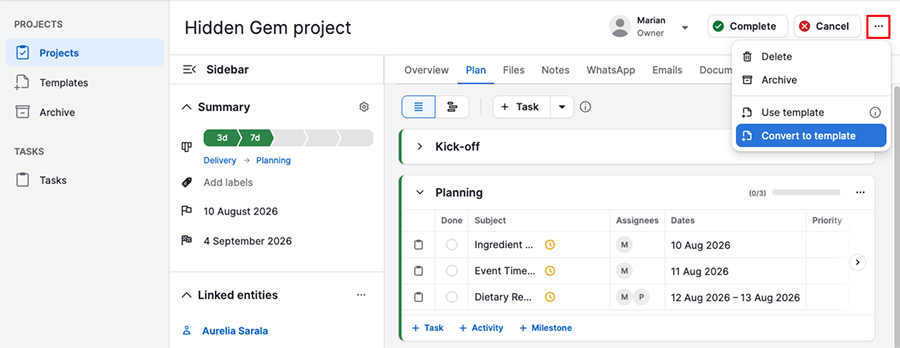
If you regularly create the same project-related work items in the same phases or custom groups, you can also convert your project into a template for reuse later.
How can I organize project-related work?
You can organize project-related work either by phase or by group.
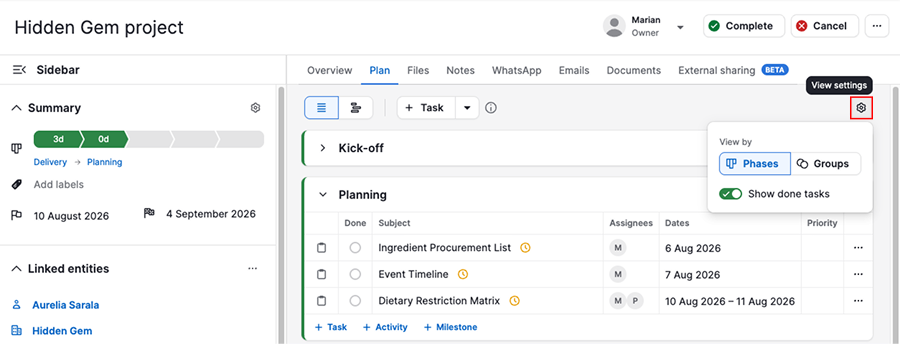
Phases represent the main steps of your project process, while groups help organize work by team, responsibility or category.
For example, you can use groups to separate work between customer success, technical setup and training teams. This makes it easier for each team to focus on their tasks while still following the same overall project process.
How can I automate projects?
You can automate repetitive project actions using Pipedrive automations.
For example, teams can automatically create a project when a deal is marked as won, assign project tasks to specific users or update project phases when work is completed.
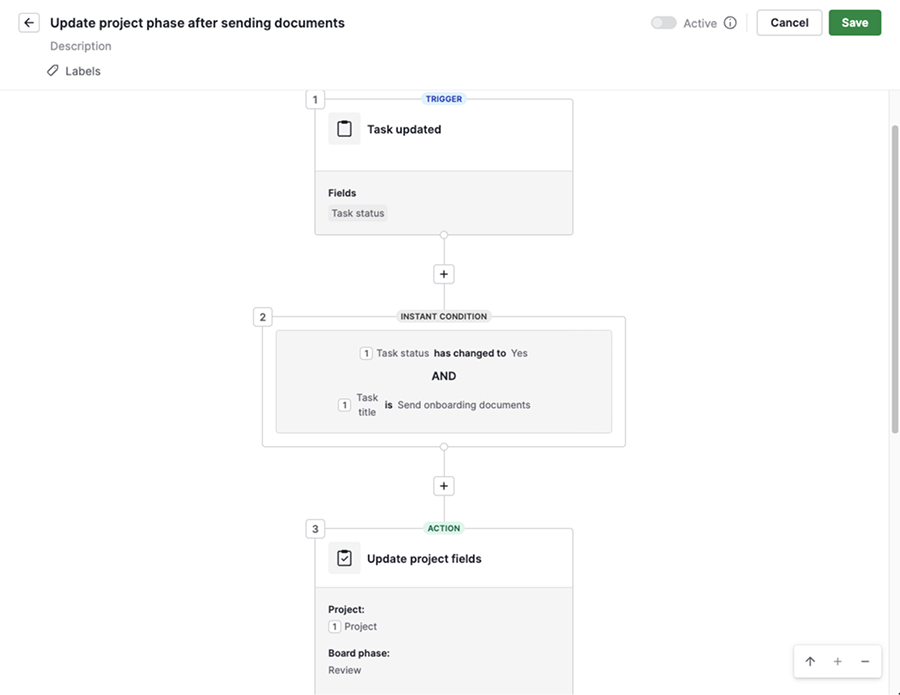
Automations help reduce manual work and keep sales and delivery processes connected.
How can I analyze projects in Insights?
You can track how your projects are performing directly in the project board and through Insights reports.
Pipedrive includes two dedicated report types for projects, each answering a different question about your delivery process:
- The project performance report shows how many projects are active, helps you spot delays and shows how work is distributed across your team
- The project duration report shows how long projects take to complete and highlights which phases are slowing down delivery

Use these reports together to monitor project completion, identify bottlenecks and get a better picture of your team’s delivery process.
Was this article helpful?
Yes
No