Acest articol a fost generat folosind traducerea automată.
Gestionați utilizatorii care pot declanșa automatizări
Nu este necesar ca fiecare membru al echipei dvs. să își creeze propria automatizare. Puteți crea o singură automatizare și adăuga membrii echipei ca utilizatori selectați. Aceștia o vor putea declanșa fără să configureze nimic.
Dacă doriți ca un alt utilizator să preia automatizarea, consultați cum să transferați dreptul de proprietate asupra automatizării.
Alegeți cine poate declanșa automatizări
După ce automatizarea este gata, dați clic pe „Salvați”.
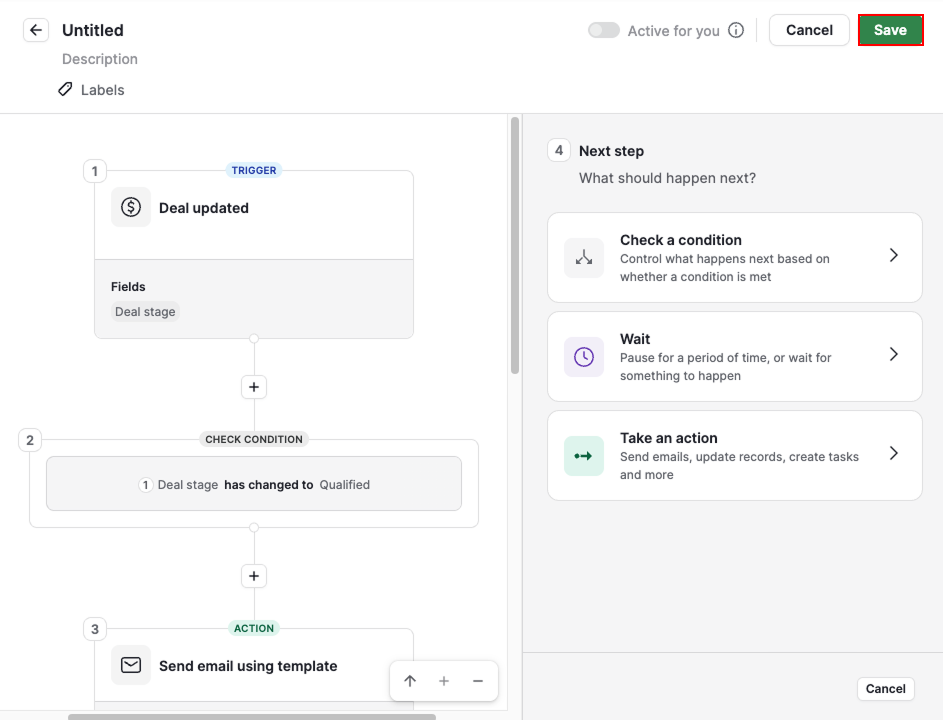
Apoi îi puteți da un nume, puteți adăuga o descriere și puteți alege cine o poate declanșa:
- Toți utilizatorii – toți utilizatorii din contul companiei dvs.
- Utilizatori selectați – numai utilizatorii pe care îi selectați
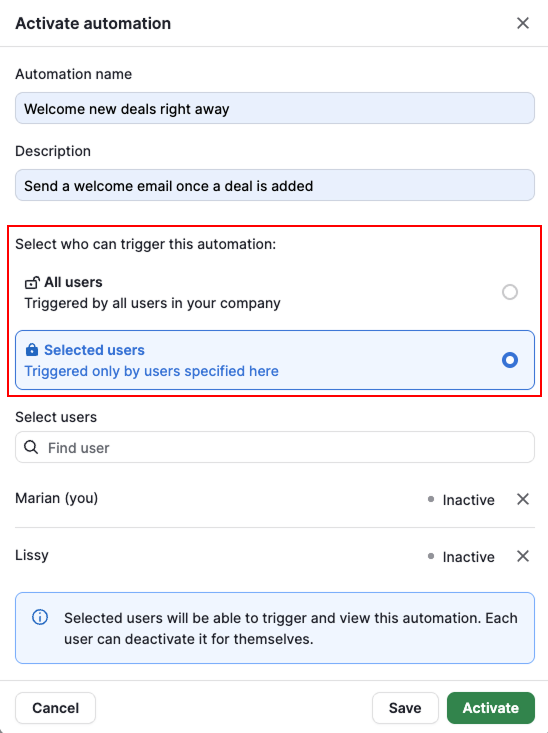
Când dați clic pe „Activați”, automatizarea devine activă pentru toți utilizatorii selectați. Niciun utilizator nu trebuie să o activeze individual. Automatizarea se declanșează pentru fiecare utilizator atunci când sunt îndeplinite condițiile și condițiile declanșatorului.
Ce înseamnă să fiți un utilizator selectat
Statutul de utilizator selectat este distinct de setul dvs. de permisiuni. Atât administratorii globali, cât și utilizatorii obișnuiți globali pot fi utilizatori selectați.
Dacă un administrator global este utilizator selectat, accesul său nu se schimbă, deoarece poate deja gestiona automatizările din întregul cont.
Dacă un utilizator obișnuit global este utilizator selectat, acesta poate:
- Să vadă automatizarea în lista sa de automatizări
- Să activeze sau să dezactiveze automatizarea pentru sine
- Să își vadă propriile execuții în fila de istoric
- Să duplice automatizarea, dacă are permisiunea „Adăugați automatizări și configurați expeditorii e-mailurilor automate”
Gestionați utilizatorii selectați pentru automatizările existente
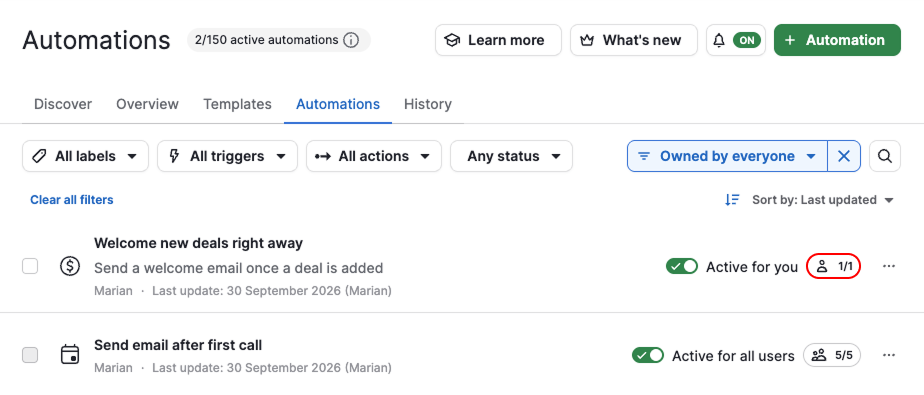
În vizualizarea în listă a automatizărilor, fiecare automatizare afișează câți utilizatori o pot declanșa.
Deschideți automatizarea, dați clic pe pictograma utilizatorilor și selectați „Gestionați utilizatorii”.
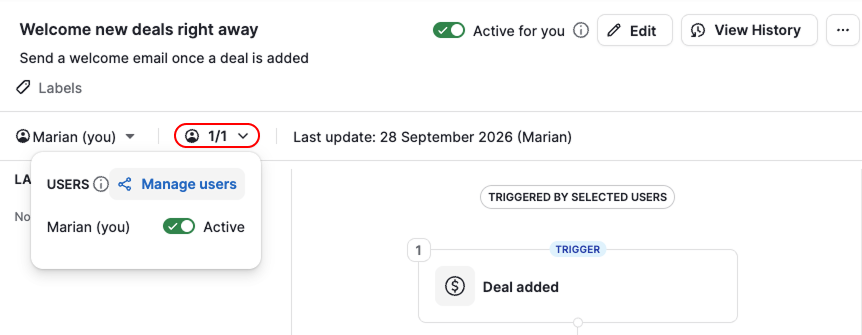
- Pentru a adăuga o persoană, selectați utilizatorii pe care doriți să îi adăugați. Automatizarea se activează automat pentru aceștia.
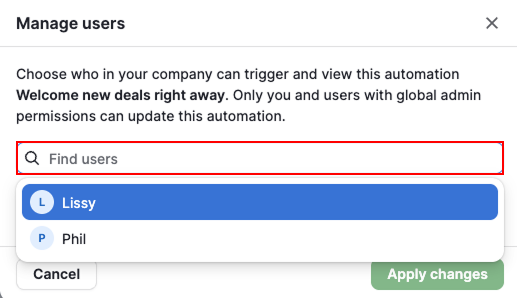
- Pentru a elimina o persoană, dați clic pe „X” de lângă numele acesteia
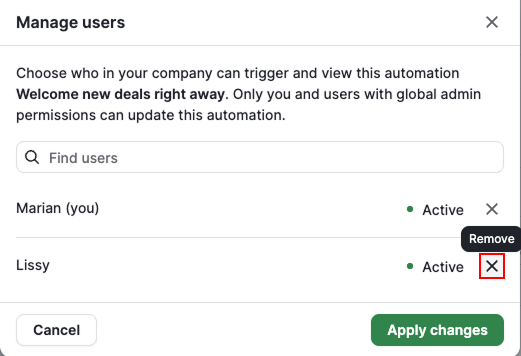
Dați clic pe „Aplicați modificările” pentru a salva.
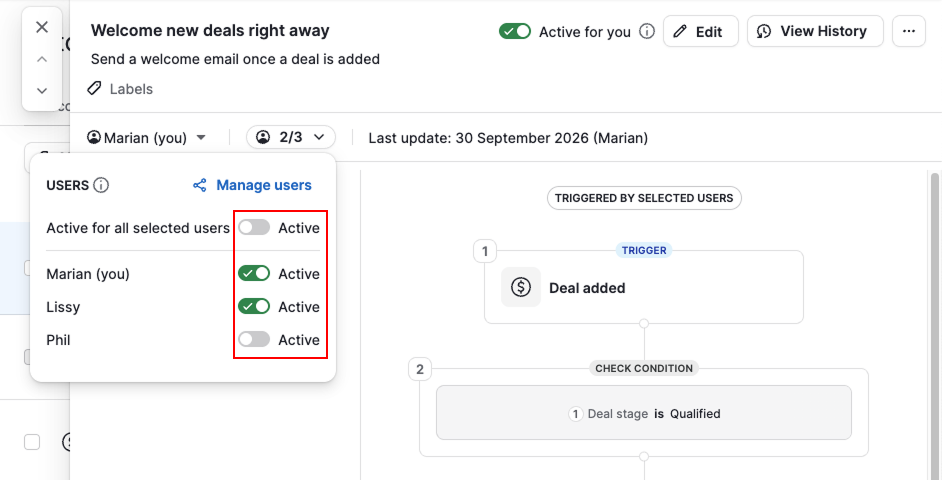
Pentru a activa sau dezactiva automatizarea simultan pentru toți utilizatorii selectați, folosiți comutatorul „Activă pentru toți utilizatorii selectați” din partea de sus a panoului. Pentru a modifica starea automatizării pentru un singur utilizator, folosiți în schimb comutatorul „Activă” de lângă numele acestuia. Fiecare utilizator selectat poate activa sau dezactiva această opțiune și pentru sine.
A fost util articolul?
Da
Nu