Acest articol a fost generat folosind traducerea automată.
Cine poate crea și gestiona automatizări în Pipedrive?
Acțiunile pe care le puteți efectua cu automatizările în Pipedrive depind de setul dvs. de permisiuni și de faptul că dețineți sau nu automatizarea.
Acest articol explică cine poate crea, vizualiza, edita, duplica, șterge și transfera automatizări și cum influențează permisiunile și deținerea accesul la acestea. Pentru a afla cum să găsiți și să filtrați automatizările, consultați „Vizualizarea automatizărilor în listă”.
Creați automatizări
În mod implicit, numai utilizatorii cu permisiuni de administrator global pot crea automatizări. Utilizatorii globali obișnuiți pot crea automatizări dacă permisiunea „Adăugați automatizări și configurați expeditorii e-mailurilor automate” este activată pentru setul lor de permisiuni.
Acordați utilizatorilor globali obișnuiți permisiunea de a crea automatizări
Pentru a activa permisiunea:
- Deschideți „meniul contului” și accesați „Gestionați utilizatorii” > „Seturi de permisiuni”
- Extindeți seturile de permisiuni pentru caracteristici globale
- Selectați setul de permisiuni pe care doriți să îl actualizați
- Dați clic pe „Editați setul de permisiuni”
- Activați „Adăugați automatizări și configurați expeditorii e-mailurilor automate”
- Salvați modificările
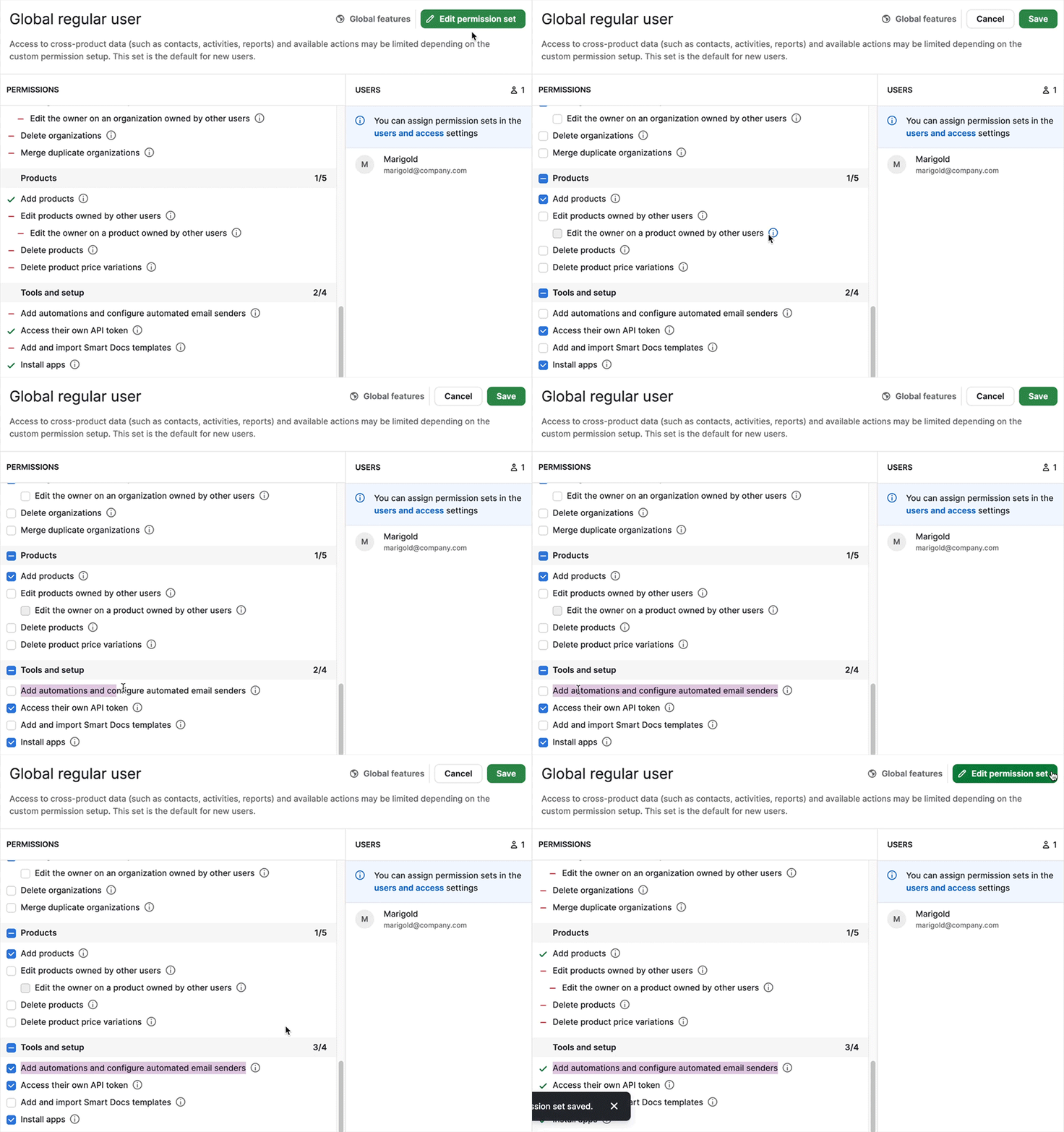
După activarea permisiunii, utilizatorii din acel set de permisiuni pot crea automatizări și configura expeditorii e-mailurilor automate. Pentru mai multe informații despre opțiunile privind expeditorii și adresele de răspuns, consultați „Expeditorii e-mailurilor din automatizări”.
Gestionați automatizările
Acțiunile pe care le puteți efectua cu o automatizare existentă depind de faptul că sunteți deținătorul acesteia, administrator global sau utilizator selectat. Administratorii globali pot vizualiza și gestiona automatizările din întregul cont, chiar dacă nu le dețin.
Înțelegeți cine deține automatizările
Deținătorul unei automatizări este utilizatorul care a creat-o sau administratorul global căruia i-a fost transferată. Utilizatorii obișnuiți pot deține automatizările pe care le creează, dar deținerea poate fi transferată numai unui administrator global.
Deținătorii automatizărilor și administratorii globali pot:
- Vizualiza, edita, duplica și șterge automatizarea
- Transfera deținerea către un administrator global
- Gestiona utilizatorii selectați care pot declanșa automatizarea
- Vizualiza istoricul execuțiilor pentru toți utilizatorii care declanșează automatizarea
Înțelegeți rolul utilizatorilor selectați
O automatizare poate fi declanșată de toți utilizatorii sau numai de utilizatorii selectați.
Dacă este selectată opțiunea „Declanșată de utilizatorii selectați”, numai utilizatorii adăugați la automatizare o pot declanșa.
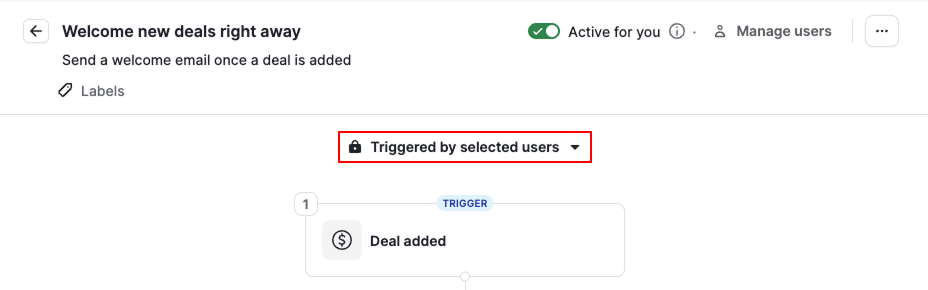
Atât administratorii globali, cât și utilizatorii obișnuiți globali pot fi utilizatori selectați. Faptul că sunteți un utilizator selectat nu vă modifică permisiunile existente și nu vă face deținătorul automatizării.
Dacă un utilizator obișnuit global este utilizator selectat, acesta poate:
- Să vadă automatizarea în propria listă de automatizări
- Să activeze sau să dezactiveze automatizarea pentru sine
- Să își vadă propriile execuții în fila de istoric
- Să duplice automatizarea, dacă are permisiunea „Adăugați automatizări și configurați expeditorii e-mailurilor automate”
Nu poate edita, șterge sau transfera automatizarea. De asemenea, nu poate adăuga sau elimina alți utilizatori selectați.
Consultați Gestionarea utilizatorilor care pot declanșa automatizări pentru a afla cum să adăugați sau să eliminați utilizatori selectați.
Vizualizați istoricul execuțiilor
Deținătorul și orice administrator global pot vedea istoricul execuțiilor pentru toți utilizatorii care declanșează automatizarea.
Un utilizator selectat care nu deține automatizarea își poate vedea numai propriile execuții.
A fost util articolul?
Da
Nu